


Folding of text is a visual way of tucking in groups of text out of sight to improve legibility and reduce distraction. Vim supports folding of text. Here are a couple of Vim commands that will help you master folding of text in Vim with ease.
Showing posts with label vim. Show all posts
Showing posts with label vim. Show all posts
Vim Celebrates 20 Years - Happy Birthday Vim !
November 03, 2011
20 years ago this day (November 2), Bram Moolenaar created Vim - an improved version of Vi text editor found in most Unix systems. Since then, Vim has flourished to become the Swiss army knife of text editors. The latest version of Vim is 7.3 which was released a little over a year ago. Vim is truly cross platform and works on Unix, Linux, Mac OS X, and Windows.

Learn To Use Vim Text Editor The Easy Way
September 28, 2011
Vim is an enhanced version of the ever popular command line text editor vi. If you master the use of Vim text editor, it can be a very powerful tool in your hands, and allow you to do amazing text editing feats with just a few taps on your keyboard.
In 2007, this site had conducted a poll, and over 50% of the respondents said their favorite text editor is Vi.
In 2007, this site had conducted a poll, and over 50% of the respondents said their favorite text editor is Vi.
Over 10 power user tips for Vim editor
November 19, 2007 2 commentsAfter using Vi or Vim for a couple of days, ever been left wondering what is it that makes Vi enthusiasts sing eulogies of this geeky text editor ? Then here are a number of reasons which will make you wonder why you hadn't embraced Vim sooner.
Swaroop C H has compiled over 10 specific ways to improve your productivity with Vim. These are the same functionality he found in Emacs and for which he provides equivalent commands in Vim.
The tips include :
Swapping caps-lock and Control keys, using incremental search for navigation, Making better use of the buffers in Vim, mastering vim regular expressions and picking up fine grained text manipulation commands in Vim among many others.
Most of the settings he lists can be made permanent by entering them in your .vimrc configuration file which resides in your home directory in Linux. Of course, if you are still putoff then there is another project called Cream for Vim which will save the day for you.
Apart from providing the power user tips, he also lists some additional plugins which further extends the functionality of this wonderful editor. Do read his tips to know more.
7 Habits for effective text editing 2.0
February 27, 2007 5 commentsBeing a Vi enthusiast, I am always on the look out for articles related to Vi, or rather Vi's modern avatar Vim - the versatile text editor created by Bram Moolenaar. In the past, this blog has seen a number of posts related to Vim. In fact if you ask me, the proverb "Too much of a thing" doesn't hold true for Vim.
It can easily take you a life time to learn each and every aspect of Vim though in most cases you can get along quite well by mastering just a couple of Vi commands. The sheer number of features and the permutations and combinations are that many. Then you have branched projects which aim to make Vim much more easier for the average computer user. Cream for Vim being a case to the point.
Today I stumbled upon this video which explains the 7 Habits for effective text editing in Vim which I found informative. The video is one of the series of Google TechTalks. In this video, Bram Moolenaar himself talks on the most efficient ways of editing text in Vim. The regular readers of this blog will know that Bram Moolenaar now works for Google.
The preamble of Google TechTalks goes thus :
Google TeckTalks are designed to disseminate a wide spectrum of views on topics including Current Affairs, Science, Medicine, Engineering, Business, Humanities, Law, Entertainment, and the Arts.
The video is a bit large (over 500 MB in size) and stretches over 1 hour. So make sure you have the required bandwidth to view the video. It is every bit worth watching.
How to use Tabs in Vim Text Editor
January 28, 2007 1 comments
If you are interested in learning how to use Vim editor, then check out the following resources :
A visual walk through of a couple of the new features in Vim 7.0
September 18, 2006 45 comments
A very prominent personality once said, and I quote :
On the fly spell checking
 Fig: On the fly spell checking
Other spelling related commands
:set spell - Turns on the spell checking
:]s - Move to the next mis-spelled word in the document.
:[s - Same as above command but searches backwards.
Bracket highlighting
 Fig: Bracket highlighting
Omni completion
 Fig: Omni completion - a boon to the programmer.
Open files in tabs
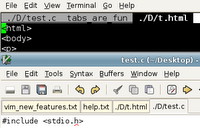 Fig: Open files in tabs.
A few other tab manipulation commands are as follows:
:tabc - Close the current tab.
:tabnew - Open a new file for editing in a separate tab.
:tab split - Open the file in the current buffer in a new tab page.
:tabn - Switching to the next tab page.
:tabp - Switch to the previous tab page.
:tabo - Close all other tab pages.
Undo Branches
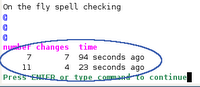 Fig: A list of undo levels with the time
"Sometimes, people ask me if it is a sin in the church of Emacs to use the editor Vi. It is true that Vi-Vi-Vi is the editor of the beast...."
Just for once, I wouldn't mind siding with the beast if that is what it takes to use Vi. The modern avatar of Vi is Vim - the free editor created by Bram Moolenaar. Riding from strength to strength, this editor in its 7th version is a powerhouse as far as an editor is concerned. When ever I use Vim (or GVim for that matter), it gives me the impression of the Beauty and the Beast. It is very beautiful to look at - if you are like me who finds beauty in software , and it is also as powerful as a beast. I use this editor exclusively for all my editing needs that, when I use any other editor, I inadvertently press escape key. That should give you an idea of how ingrained the use of this editor has become in my computing life.
Vim 7.0 - the latest version has a slew of new features built into it. Some of them which I am aware of are as follows:
On the fly spell checking
Vim 7.0 has an on the fly spell checker built into it similar in lines to that found in Microsoft Word. By default, this feature is turned off. But by navigating to Tools -> Spelling -> "Spell check on", you can make Vim display all the mis-spelled words in your document. It does this by highlighting them with red coloured wriggly lines. And all it takes to correct the misspelled words is to move the caret to the highlighted word and while in "Vi Command mode", press 'z=' and Vim will show a list of words closest in relation to the misspelled words and the user can choose from them.
 Fig: On the fly spell checking
Suppose, you want GVim to recognise the word GVim as a valid word. It is possible to tell the spell checker that GVim is a good word by moving the cursor on the GVim word and pressing 'zg' in command mode. On a similar vein, it is possible to tell Vim spell checker that a word is wrong by pressing 'zw'. Vim stores the good/bad words that the user recognises in a file associated with the variable spellfile. If the file is empty or not created, then Vim will create one automatically and store the words in this file for future use.
Other spelling related commands
:set spell - Turns on the spell checking
:set nospell - Turns off the spell checking (can be achieved using GUI too).
:]s - Move to the next mis-spelled word in the document.
:[s - Same as above command but searches backwards.
z= - Shows a list of close matches to the mis-spelled word from which the user can pick the correct one.
Bracket highlighting
This feature is most useful for programmers than for ordinary users. Vim will automatically highlight the corresponding closing bracket when the caret is moved over any bracket. This helps in keeping track of the blocks of code and is especially useful when writing code which make use of multiple layers of brackets. Ofcourse this feature could take up some memory. But you can use the ':NoMatchParen' command to disable this feature.
 Fig: Bracket highlighting
Omni completion
It is a smart kind of completion like the intellisense. It is most useful for people who write code. For example, if I am writing HTML code and I have saved the file with the extension .html, then Vim will automatically load the HTML tag file and when ever I want Vim to auto complete the HTML code, while in Insert mode, I press the key combination [Ctrl+x] [Ctrl+o] and Vim will smartly guess the correct keyword and insert it. If there is any ambiguity, then Vim will show the possible completions in a pop up window. This feature is presently available for 8 languages which include C, (X)HTML with CSS, JavaScript, PHP, Python, Ruby, SQL and XML. It is also possible to add custom omni completion scripts.
 Fig: Omni completion - a boon to the programmer.
Open files in tabs
One of the most useful user interface is the tabs. Support for tabs in applications have been well received by the ordinary users that most web browsers and editors now support opening pages in tabs. Following this trend, Vim has also incorporated tab support in its latest version. And like all things related to Vim, it is entirely possible to open new files in tabs and manage tabs using the commands entered in the Vim Command mode.
 Fig: Open files in tabs.
For example, while editing a file in Vim, I wish to open another file in a new tab. I can move to Command Mode and enter the command as follows:
:tabe /home/ravi/Desktop/myotherfile.txtA few other tab manipulation commands are as follows:
:tabs - View a list of tabs that are open with the file names. Use the command ':tabs' and Vim will display a list of all the files in the tabs. The current window is shown by a ">" and a "+" is shown for any modifiable buffers.
:tabc - Close the current tab.
:tabnew - Open a new file for editing in a separate tab.
:tab split - Open the file in the current buffer in a new tab page.
:tabn - Switching to the next tab page.
:tabp - Switch to the previous tab page.
:tabr[ewind] - Go to the first tab page. You get the same effect when you use the :tabf[irst] command.
:tabo - Close all other tab pages.
Undo Branches
One of the things I really like about Vim is the use of the key 'u' to undo any changes. When ever I make a series of mistakes while editing a document, I just move to command mode in Vim and press the key 'u' a series of times to move to a point prior to the mistakes.
 Fig: A list of undo levels with the time
In Vim 7.0, a new feature has been included which allows a user to jump back or forward to any point of editing. For example, I am editing a document and after a couple of minutes (say 10 min), I realise that I have made a mistake. I can easily take the document to a point 10 minutes back by using the command :
:earlier 10mOr for that matter, move to a point 5 seconds ahead by using the command:
:later 5sYou can use the command :undolist to see a list of undo branches existing in the buffer. And each branch will have a number associated with it and it is possible to move to the undo level by using the command:
:undo <number>Anybody who has used Photoshop will find that this feature is similar to the history levels you have in Photoshop, the only difference being that in Photoshop it is for images where as in Vim it is for text.
These are not the only new features. There are scores of others like Remote file explorer which allows one to directly edit a file residing in a remote location, better POSIX compatibility, Vim's own internal grep and so on which I have not covered here because this article is after all a visual walk through of the new features in Vim 7.0.
It takes real genius and stellar coding skills to create and maintain such a versatile editor and Bram Moolenaar has proved yet again that he has the necessary ingredients to qualify him for the post.
Cream for Vim - Making Vim more user friendly
June 17, 2006 10 commentsLearning to use Vi editor could be a real pain for most people as it has a relatively steep learning curve. But once the most common commands are mastered, one gets to enjoy the sheer power of this editor made available at ones finger tips. And there are an ever growing group of Vi enthusiasts around (myself included) who swear by it over other text editors. The modern avatar of Vi is Vim (VI iMproved) created by Bram Moolenaar and released as an open source software package. VIM is an excellent vi clone with a slew of additional features and which can be further enhanced and modified using scripts. On last count there are 1557 scripts available at the Vim.org website which enhances the editor for a variety of uses.
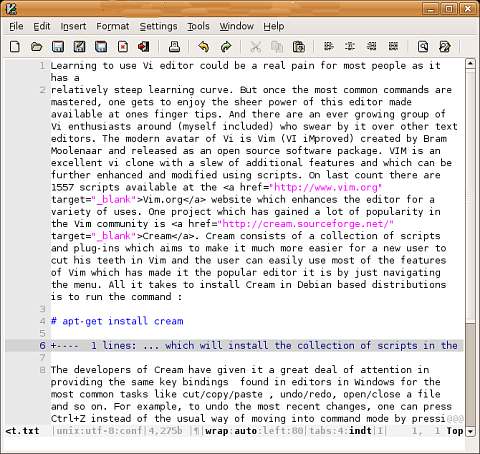 Fig: This article displayed in Cream editor
One project which has gained a lot of popularity in the Vim community is Cream. Cream consists of a collection of scripts and plug-ins which aims to make it much more easier for a new user to cut his teeth in Vim and the user can easily use most of the features of Vim which has made it the popular editor it is by just navigating the menu. All it takes to install Cream in Debian based distributions is to run the command :
# apt-get install cream... which will install the collection of scripts in the necessary places as well as provide an entry in the Gnome Applications Menu. The only requisite is that you should already have GVim installed on your machine. Once Cream is installed, one can double click the menu entry in the Gnome Applications menu and GVim is started with the Cream scripts in place. At this point one might ask what is unique about this project ? Well for one, this redesigns GVim to bring the same ease of use of any ordinary text editor (read kate, kwrite, nano ...) where the user need not be bothered by the different Vi command modes; rather he/she can just start typing. Secondly, it brings a whole lot of power to the user by providing menu entries for most of the special things one can achieve in GVim. Take for instance creating folds in ones text. In GVim, one does it by pressing the key combination "v}zf" in the command mode. And a new user who is trying Vi will in most cases be ignorant about this. Cream has a menu entry for folding the paragraphs in ones text and all it takes is to just select the paragraph which has to be folded and press F9 or click on the menu Tools --> Folding --> Set fold (selection). And voila! a fold is created. But this is only a small part of the features provided by Cream.
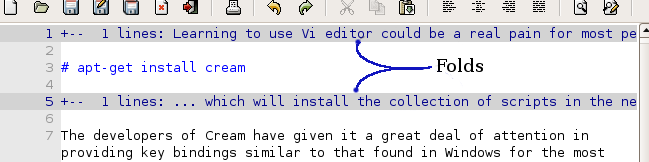 Fig: One can create folds in Cream with ease
The developers of Cream have given it a great deal of attention in providing the same key bindings found in editors in Windows for the most common tasks like cut/copy/paste , undo/redo, open/close a file and so on. For example, to undo the most recent changes, one can press Ctrl+Z instead of the usual way of moving into command mode by pressing 'Esc' and then pressing 'u'. By remapping the shortcuts, the developers of Cream have considerably reduced the learning curve to make it almost negligible.
Another thing which I found really useful is the "Settings" menu which contains options for setting various parameters like the tabstop width, toggling auto-indent and setting the preferences like the font used, bracket flashing and so on. But what is to be noted is that the settings that are changed are automatically made permanent until the user changes them again.
This is different in the original GVim in that the changed settings apply only to that instance of the editor and in-order to make the settings permanent, you have to save them in the gvimrc configuration file residing in the /etc/vim/ directory.
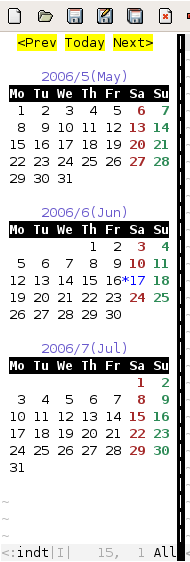 Fig: Calendar plugin
Cream also installs a few additional plugins along with it. One which took my fancy is the calendar plugin which embeds a calendar inside the editor. And one can view the calendar by pressing Ctrl + F11. Why just a calendar... there is also a game called typing tutor which can be played inside the editor to while away ones time and improve ones typing speed at the same time. All in all, this is a very interesting project which reconfigures the Vim editor to make it as easy to use as an ordinary text editor without sacrificing any of its underlying power.
Vim Tip : Using Viewports
May 11, 2006 2 commentsVi(m) is a versatile editor with great power built into it. There are a whole lot of commands which one can use to accomplish complex tasks which are next to impossible in other text editors barring say an Emacs. A couple of months back, in an article on Vim editor, I had covered some of the most commonly used commands. But what I had covered was only a tiny spec of the number of commands available for this editor.
Joe 'Zonker' Brockmeier has written a very interesting article which explains the concept of viewports in Vim. Viewports enable one to open and view multiple documents in the Vim editor simultaneously. It is similar to but not the same as the tabs concepts one see in many GUI text editors where multiple documents can be opened in tabs inside a single editor instance.
I have been a Vim user since the first time I started using it and I have never felt the need to use another one for any of my editing purposes be it web development, coding or writing a letter. It is really fascinating that in a couple of keystrokes, one can accomplish such complex tasks in Vim which would require much greater effort in other text editors.
Google Hires Vim Author
March 27, 2006 0 comments
A percentage of the money donated for Vim editor is made use by Bram Moolenaar for the welfare of under privileged children in Uganda through the ICCF.Thus by using and encouraging its use and obviously donating some money to the project, one is actually helping the children in Uganda.
Vim - The powerful simple editor
September 01, 2005 1 comments
You select any Linux/Unix OS distribution; from the spartan linux which fits on a floppy to the industry heavy weights like redhat and suse; you are guaranteed to find the vi editor. So it is really worth ones time to learn how to use this powerful but simple editor. Vim is the modern version of the vi editor. Learning to use vim (vi) contains an initial learning curve. But the power it gives the user to accomplish complex text manipulation with just a few keystrokes makes the trouble taken to learn worth it.
Here I will explain a few commonly used commands in Vim. Vim (vi) is an editor with modes of operation. There are three modes of operation in vim. They are as follows :
Here I will explain a few commonly used commands in Vim. Vim (vi) is an editor with modes of operation. There are three modes of operation in vim. They are as follows :

