


GNOME 3.16 is the latest version of GNOME 3, and is the result of six months' work by the GNOME project. It includes major new features, as well as a large number of smaller improvements and enhancements. The release incorporates 33525 changes, made by approximately 1043 contributors.
Showing posts with label gnome. Show all posts
Showing posts with label gnome. Show all posts
Introducing GNOME 3.16 - A Preview
March 29, 2015GNOME 3.16 is the latest version of GNOME 3, and is the result of six months' work by the GNOME project. It includes major new features, as well as a large number of smaller improvements and enhancements. The release incorporates 33525 changes, made by approximately 1043 contributors.

How To Create A Screencast In GNOME 3
April 08, 2011
GNOME 3 has an inbuilt software that allows you to record your desktop. This makes it very easy to create a screencast in GNOME 3. Here is how you do it ...
GNOME 3 Won't Have Minimize And Maximize Buttons
March 06, 2011
GNOME 3 is doing away with minimize and Maximize buttons for applications in its user interface. The basic premise being they don't make sense within the current shell design.
Of course, that doesn't mean you can't minimize or maximize your applications' window in GNOME 3.
Of course, that doesn't mean you can't minimize or maximize your applications' window in GNOME 3.
First Look At GNOME 3 Prior To Its Release
January 21, 2011
The GNOME Project has published a new website Gnome3.org showcasing the GNOME 3 Desktop environment.
If you are really interested in trying out GNOME 3 just now,you can do so by compiling it yourself using GNOME's JHBuild sandboxing tool.
Cover Thumbnailer - How to install in Ubuntu Linux
January 17, 2011
Cover Thumbnailer is a small Python script which displays music/video album covers in Nautilus in place of ordinary icons of folders, preview of pictures in a folder and more.
It is similar to what you see in Microsoft Windows 7 where the folder shows a preview of the pictures contained in it.
It is similar to what you see in Microsoft Windows 7 where the folder shows a preview of the pictures contained in it.
GNOME Census - A Glance Into Developer Participation In GNOME
August 02, 2010
As a GNOME user, have you ever wondered - How big is the GNOME project ? What is its make up ? How are decisions taken ? And how many GNOME developers are there ? If yes, then you need look no further. Because Neary Consulting - A Free software consultancy, has released the GNOME Census giving an overview of the GNOME project and its functions. The census report analyzes how developers participate in the GNOME project and looks for patterns within the project itself.
GNOME Do - An intelligent launcher tool for GNOME
April 21, 2009
GNOME Do is an intelligent launcher tool which makes all your default menus and panels in GNOME redundant. Since last time I had written about GNOME Do, it has gotten only better. Just a glance through the numerous plugins available for GNOME Do will be enough for any sceptic to fall in love with it.
Linus Torvalds ditches KDE 4 for GNOME
January 26, 2009Linus Torvalds says he has ditched KDE for good and is now sleeping with its arch rival GNOME. Oh well, rhetoric apart, he says the move over to GNOME happened because in KDE 4, he found it quite bothersome that he couldn't get his Right mouse button to access the right menu he wanted. In short, he ran into usability issues while using KDE 4.0.
In an interview given to Rodney Gedda of "Computer World" - Australia, he had this to say, and I quote :
I am sure the GNOME camp must be rejoicing in having won over a high profile Linux user to their side. This when a few years back, Linus Torvalds had gone on record severely criticizing GNOME for over simplifying the user interface.
Linus Torvalds was in Australia to attend the annual linux.conf.au organised by Linux Australia. While he was rather critical of KDE 4 in its current form, he did say it was a good thing for Nokia to release Qt as LGPL. Among other things, he also gives his views on Microsoft Windows 7 advising Microsoft to release sooner and decouple the operating system from the applications. A really interesting interview.
I used to be a KDE user. I thought KDE 4.0 was such a disaster I switched to GNOME. I hate the fact that my right button doesn't do what I want it to do. But the whole "break everything" model is painful for users and they can choose to use something else.
I realise the reason for the 4.0 release, but I think they did it badly. They did so may changes it was a half-baked release. It may turn out to be the right decision in the end and I will re-try KDE, but I suspect I'm not the only person they lost.
I am sure the GNOME camp must be rejoicing in having won over a high profile Linux user to their side. This when a few years back, Linus Torvalds had gone on record severely criticizing GNOME for over simplifying the user interface.
Linus Torvalds was in Australia to attend the annual linux.conf.au organised by Linux Australia. While he was rather critical of KDE 4 in its current form, he did say it was a good thing for Nokia to release Qt as LGPL. Among other things, he also gives his views on Microsoft Windows 7 advising Microsoft to release sooner and decouple the operating system from the applications. A really interesting interview.
GNOME Do - a universal launcher for the GNOME Desktop
December 21, 2007 2 commentsWhen ever I have logged in to Windows, there is one program which I use on a regular basis and which I cannot do without. The program is called Launchy. The unique feature of this program is that it helps me to navigate the file system, open applications, visit websites and a lot more by just typing a couple of keys. Launchy runs in the background as a service and is activated when a key combination is pressed. On my machine it is [Alt] + [Space].
 Fig: Launchy in action in Windows
In KDE, we have a similar program called Katapult. But if you are a GNOME user then you should check out a recent project which tries to equal or even surpass all the features found in Launchy. The name of the project is "Gnome Do". Simply put, Gnome Do is a launcher ... of applications, web pages, Firefox bookmarks, system config panels, your documents residing on your hard disk and so on. But you can also extend the functionality of Gnome Do using an add-in framework.
 Fig: Gnome Do interface
Gnome Do is the brain child of David Siegel who started this project to be submitted to his university as a part of his curriculum. It has been entirely coded using C# and uses Mono. David Siegel claims he was motivated to work on Gnome Do seeing a similar project called Quick Silver on Mac OSX.
I installed "Gnome Do" using the method explained in the official website and the installation was successful. If you are using Ubuntu, then you can download and install the binary instead of compiling the program from source.
Once installed and running, Gnome Do acts as a background process waiting for the specific key press combination from the user. The default key combination is [Win Key] + [Space].
When you press the key combination, Gnome Do will make itself visible and you can start typing. It takes only the first couple of key strokes from the user to zero in on the correct application you wish to launch. For example, if I want to open Gedit text editor, instead of navigating the Gnome menu, I activate Gnome Do and type the first three characters namely 't', 'e'. 'x' and by then Gnome Do has zeroed in on the gedit text editor and all I have to do is press enter to open the text editor.
 Fig: Type 't','e','r' and Gnome Do highlights terminal.
When you press the hot key combination and bring Gnome Do to the foreground, you will find two boxes side by side. You can navigate between either of the boxes using the [Tab] key. And while one of the boxes have the focus, if you press the [Down arrow] key, it will open a drop down list which will list alternate actions that can be taken such as opening a terminal in the current location and so on.
Features of Gnome Do
- All applications in your Gnome menu are indexed.
- Supports an add-in framework so it is easy to write and extend the functionality of Gnome Do to suit your needs via pieces of code called add-ins. You can find a couple of add-ins at do.davebsd.com/addins. You have to place the add-ins in ~/.do/addins and restart Gnome Do.
- It keeps track of your Firefox bookmarks so you can start typing the first few letters of a bookmark and Gnome Do will open the webpage for you.
- Type an English word and it will open Gnome dictionary to give you the meaning of the word.
- You can open any file or folder in your home directory by typing the first few letters of their name and pressing enter. For example, to open my home folder, I press the hotkey combination and type 'r', 'a', 'v' and Gnome Do will open my home folder.
Tag your files and folders with an emblem in Gnome
June 09, 2006 6 commentsI like all things which are simple. And I like Gnome desktop very much because of the obsession of its developers in making this popular desktop as simple and intuitive to use as possible. Yes I know, Linus Torvalds has in the past gone on record stating his preference for KDE over Gnome for just this very reason. Nevertheless, my disgust towards complexity goes back to the times I used to work in Windows when I had to put up with the hard to understand jargon and syntax of things I had to do to maintain it. So when I switched to Linux, Gnome desktop breathed a bout of fresh air in its simplistic but functional design.
 Fig: Shows the folders and files tagged with unique icons
In Gnome, it is possible to tag files and folders with small icons called emblems. Tagging files with visual cues like these will help a person to find the particular file much easily. Here is how it is done:
- First choose the file you want to tag with an emblem.
- Now right click on it and select Properties from the popup menu.
- The Properties menu will have multiple tabs. From them, select the tab named 'Emblems'. Here you can choose from a collection of icons. Gnome allows one to choose multiple emblems. Once the emblem is choosen, press 'Close' button. And you are done.
I have been using this property to keep track of files which contain important data. For example, I have a folder containing contact information of people I interact with. I have tagged this file with the icon showing 'two people' which gives me a cue as to what is in this file.
Running Scripts from within Nautilus file manager
May 23, 2006 6 commentsRecently, when I was in the process of installing and using JavE - an ASCII art editor, each time I wanted to run the editor, I had to open up a terminal, navigate to the directory containing the JavE binary and then execute the command :
$ java -jar jave.jarAfter some time, this whole job of opening the terminal and typing the command became quite tedious. And I started wondering if it was possible to start the editor by just double clicking on the jar file. But double clicking on it opened the jar file in the Gnome archive manager which was not what I wanted. I even tried associating the command 'java -jar' with all jar files in Nautilus. But to no avail.
That was when I remembered that Nautilus has a special feature which allows one to pass file names to scripts from the file manager. Gnome has a special folder by name nautilus-scripts/ which resides inside the hidden directory '.gnome2/' in ones home folder. The full path for the nautilus-scripts/ in my home directory being '/home/ravi/.gnome2/nautilus-scripts/'. And any executable script that one drops in this directory will be accessible from the Gnome right click menu.
So I created a bash script by name 'Run_Java' and saved it in the folder '/home/ravi/.gnome2/nautilus-scripts/'. And voila! I was able to access and run the script by right-clicking anywhere on the Gnome desktop or file manager and selecting the script (See picture).
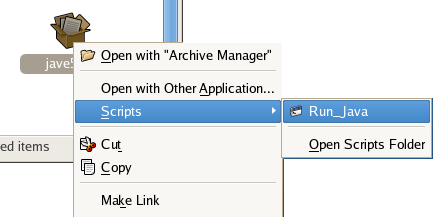 Fig: Shows how the script is executed from Nautilus
#File Name: Run_Java
#!/bin/sh
java -jar $1In the above listing, the $1 contains the value of the first parameter - which in this case was the name of the JavE jar file. You can access the nautilus-scripts/ directory in Nautilus file manager by navigating to File Menu -> Scripts -> Open scripts folder.
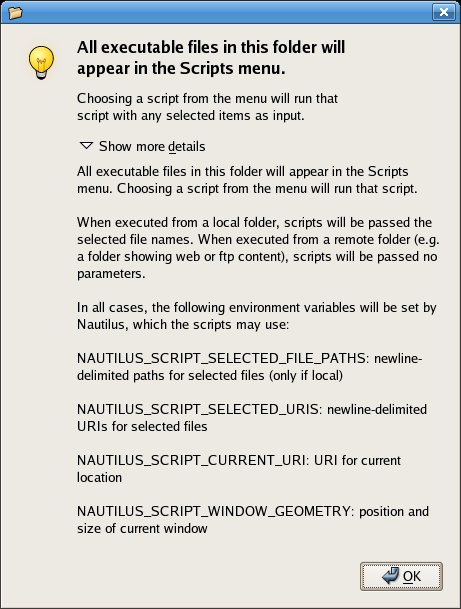 Fig: The message one sees when nautilus-scripts folder is opened in the file manager
This is a very useful feature and opens up a lot of avenues as most GUI tools in GNU/Linux accept command line parameters. For instance, one can open a Jpeg image in Gimp from the command line by passing the name of the image file as a parameter to Gimp. So by writing a bash script and saving it in this magic folder, one can select a group of image files in Nautilus and right-click and select the relevant script to open all the selected files in Gimp.
But not every one is proficient in writing scripts you say ? No problem, there is a site by name g-scripts maintained by Shane.M who has taken it upon himself to collect and make available nautilus scripts suitable for diverse purposes. The afore mentioned site contains a large collection of scripts, some of which were written by Shane himselves and others collected from different sources on the net.

